Your shop and product pages feel fine. Then a customer — or you, on a test order — hits checkout, and everything waits. The totals spinner hangs after an address change. Place order sits there. Nothing is “broken” enough to show an error. It just feels slow.
A WooCommerce checkout slow problem is easy to misdiagnose. The useful first move is not a new caching plugin, a random plugin cull on the live store, or a hosting upgrade on instinct. Find which request is waiting. Once you can name that request, WooCommerce’s own troubleshooting docs tell you what to investigate next.
This guide is for new and existing store owners who need to diagnose WooCommerce checkout slow behaviour on a real or test order. You do not need to be a developer. You do need admin access, a browser with developer tools, and preferably a staging site. By the end you should know whether the delay is on a totals refresh or on Place order, which request to show your host or developer, and which fixes are safe to try yourself.
Why WooCommerce checkout slow feels different from the rest of your site
Catalogue pages can be served from a page cache. Cart, Checkout, and My Account cannot — they show information specific to the current customer and their cart. WooCommerce’s caching configuration guidance is clear: those three pages need to stay dynamic.
So a slow WooCommerce checkout is usually not “the site is uncached”. It is work that runs on the live checkout request: recalculating totals, talking to a payment or shipping service, sending mail, or waiting on the server. Page-caching checkout to “make it fast” is the wrong tool, and it can break sessions, nonces, and totals. For peak-traffic cache hygiene without repeating a full ops checklist here, see our Black Friday readiness checklist.
If you only remember one framing: a WooCommerce checkout slow symptom is a request problem first, not a homepage PageSpeed score problem.
Before you start
- Prefer a staging copy. If you must test on production, use a low-value product or a coupon limited to your own email, put gateways in test or sandbox mode where they have one, then refund and clean up.
- Have admin access to the Checkout page (under WooCommerce > Settings > Advanced) and WooCommerce > Orders.
- Note: a staging site can still charge a card, send email, fire webhooks, or call connected services if those connections are still live — WooCommerce’s endless loading / spinner guide calls this out explicitly.
- Keep that same WooCommerce document open while you work. This post adapts its request-first method for stores where checkout works but a WooCommerce checkout slow delay still frustrates shoppers — not only when the spinner never ends.
Step 1: Know your checkout type
Before you chase a WooCommerce checkout slow fix, confirm which checkout you run. Edit the page assigned as Checkout under WooCommerce > Settings > Advanced (Page setup).
| What you see in the editor | What the browser uses |
|---|---|
| A Checkout block | WooCommerce Store API requests under /wp-json/wc/store/ (especially cart and checkout routes) |
| A Classic Shortcode block, or a shortcode for WooCommerce checkout | Classic WooCommerce AJAX, including update_order_review when totals, shipping, and payment methods refresh |
Do not switch from classic checkout to the Checkout block (or the reverse) as your first troubleshooting step. Extensions can support the two checkouts differently; switching can hide the original problem rather than fix a slow request. That warning comes straight from WooCommerce’s spinner documentation — and it applies whether your WooCommerce checkout slow is mild or severe.
Step 2: Reproduce one slow interaction
Pick one action that makes WooCommerce checkout slow for you:
- Loading checkout
- Changing the shipping or billing address
- Choosing a shipping method
- Clicking Place order
Then:
- Start with one simple, in-stock product and no coupon if you can.
- Record which address, shipping method, and payment method you used, and whether you were a guest or logged in.
- Note the time, browser, and device.
You are trying to make the delay predictable so the Network panel shows the same request every time. Guessing without a repeatable path is how a WooCommerce checkout slow investigation turns into plugin roulette.
Step 3: What to time in your browser
Open the checkout page. Open your browser’s developer tools (often right-click → Inspect, or a View → Developer menu). Select the Network panel, filter to Fetch/XHR (wording varies by browser), and enable Preserve log if available.
Clear the recorded requests, then repeat only the slow action.
Open the request that stays pending or takes the long time. Save its URL, method, status, duration, and response shape (JSON vs HTML). Strip passwords, tokens, and customer data before you paste anything into a support ticket.
This is the core of diagnosing a WooCommerce checkout slow issue: name the request before you change the store.
Classic checkout: which request?
| When it happens | Look for a URL containing | What that request is doing |
|---|---|---|
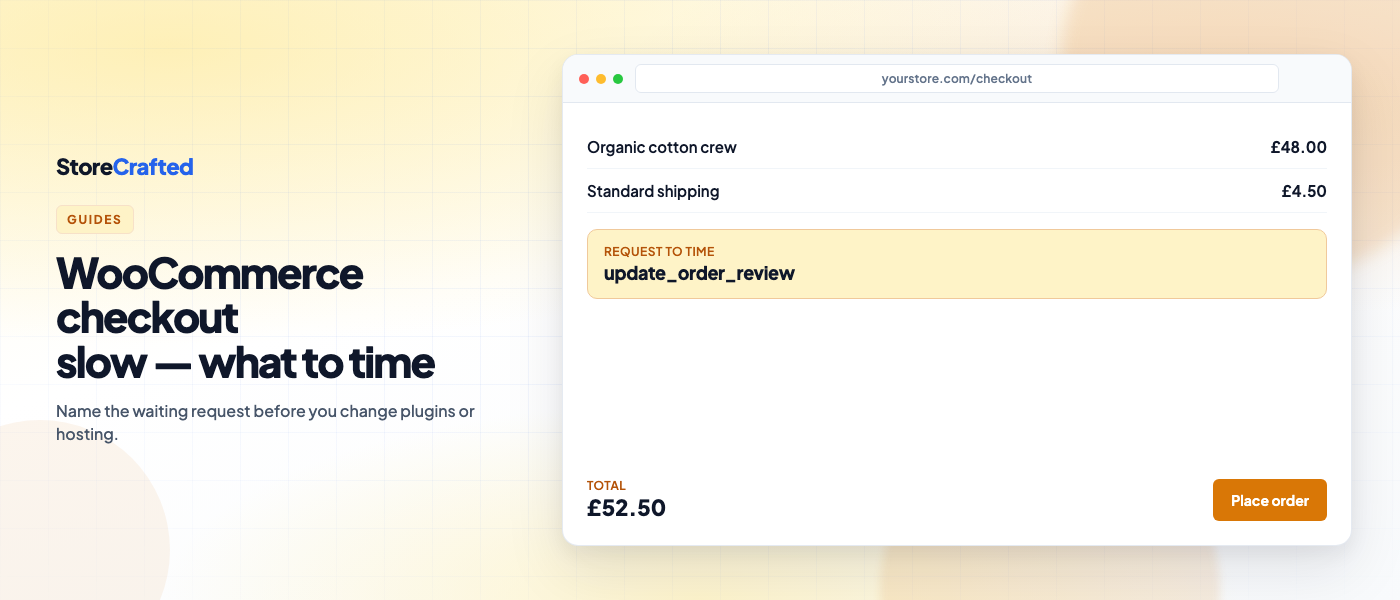
| Totals, shipping, or payment methods refresh after you change address or shipping | wc-ajax=update_order_review | Recalculating the order review |
| After you click Place order | wc-ajax=checkout | Submitting the order |
Those two URLs cover most classic WooCommerce checkout slow reports store owners describe to hosts.
Checkout block: which request?
Filter Network results for wc/store. Pay attention to cart and checkout routes under /wp-json/wc/store/. Those are the Store API calls that update the cart and process checkout on block-based checkout. WooCommerce checkout slow on the Checkout block still shows up as a long-pending Store API request — the path names differ from classic AJAX, but the method is the same.
Browser delay vs server wait
If you click Place order (or change an address) and no WooCommerce request starts for a noticeable gap, the wait may be happening in the browser or in a payment provider’s browser step before WordPress sees the request.
If the WooCommerce request starts promptly and then sits in Waiting / a long duration, the wait is on the server side of that request. WooCommerce’s spinner guide treats a request that is pending for a long time or timing out as a cue to investigate slow PHP, database work, an external API, email delivery, or a server resource limit.
You do not need a perfect millisecond reading. For a WooCommerce checkout slow case, you need the name of the request and whether it is long-pending.
When update_order_review is slow
When woocommerce update_order_review is slow, you are waiting on the classic totals refresh — not on the thank-you page yet. On the Checkout block, the matching symptom is a long-pending Store API cart update while address or shipping changes. Many merchants describe this as a WooCommerce checkout slow spinner that appears every time the postcode or shipping method changes.
The refresh path recalculates shipping, tax, and payment methods. A long-pending request here can involve slow PHP, database work, an external API, or a server resource limit — the same investigation list WooCommerce publishes for pending checkout requests.
Practical owner checks:
- Note whether the delay appears when live shipping rates, tax services, or address tools are involved. Check that extension’s logs and status page; use its documented test mode on staging if it has one.
- Confirm you are not fighting a cache or security layer that returns HTML, a login page, or a redirect instead of the expected JSON response (another outcome Woo documents for failed checkout requests).
- Do not disable payment or shipping extensions on the live store as a first move. Reproduce on staging, change one thing, then retest the same request.
If refresh is fine and only Place order hangs, you are not looking at an update_order_review problem — keep reading. The next section covers that WooCommerce checkout slow branch.
When Place order is slow
When woocommerce place order is slow, look at wc-ajax=checkout on classic checkout, or the Store API checkout route on the Checkout block. That path is a different WooCommerce checkout slow branch from the totals spinner.
Before you click Place order again, check WooCommerce > Orders: the order may already exist even if the browser still looked stuck.
If checkout stalls only after Place order, WooCommerce’s guidance is to check the selected payment gateway, fraud service, tax service, webhooks, and mail transport — using each extension’s test mode and logs, and the provider’s service status. Do not infer the cause from the spinner alone.
A spinner alone still does not identify the cause. Once you know which request is waiting, stay with those documented categories rather than guessing at plugins. That discipline is what turns a vague WooCommerce checkout slow ticket into something a developer can fix.
Check cache exclusions (required hygiene, not a speed shortcut)
Exclude the Cart, Checkout, and My Account pages from page or edge caching. Make sure the cache, CDN, firewall, and reverse proxy also pass WooCommerce AJAX and Store API requests without serving a stored response. Then purge each cache layer and retest.
That is WooCommerce’s documented configuration — see both the spinner guide and how to configure caching plugins for WooCommerce.
Correct exclusions keep checkout accurate. They do not magically shorten a slow external API call inside update_order_review or Place order. If the Network panel still shows a long-pending WooCommerce request after exclusions are correct, keep investigating that request — your WooCommerce checkout slow problem is still a timed request, not a missing cache plugin.
Misconfigured cache can also make a slow WooCommerce checkout look random (stale totals, odd redirects, or HTML where JSON should be). Fix exclusions, purge, and retest the same request before you blame hosting alone.
If email during Place order is confirmed slow
If your host or developer confirms that sending transactional email during checkout is delaying the Place order request, WooCommerce includes a Deferred emails feature under WooCommerce > Settings > Advanced > Features. It sends transactional emails asynchronously through Action Scheduler (Advanced settings).
Use it carefully:
- Test on staging with a safe mail destination.
- Enable Deferred emails, save, and place a test order.
- Confirm queued email actions complete under WooCommerce > Status > Scheduled Actions.
- Confirm the test emails actually arrive.
WooCommerce is explicit: Deferred emails is an optional feature for a confirmed email-processing delay — not a general fix for a checkout spinner, and not appropriate when the slow or failing request happens before an order is submitted (for example, a slow update_order_review refresh). Enabling it “just in case” will not fix every WooCommerce checkout slow report.
If emails are late or missing after you defer them, treat that as a separate mail / Action Scheduler problem. Confirm the test emails under WooCommerce > Settings > Emails, check spam, and review WooCommerce > Status > Scheduled Actions for failed or overdue jobs — the same email hygiene covered in our post-update checklist.
When to involve your host or developer
You have already done useful work if you can say: “Classic checkout; wc-ajax=update_order_review stays pending for a long time when I change the postcode,” or “Checkout block; /wp-json/wc/store/ checkout is slow after Place order.” That sentence is more valuable than another vague WooCommerce checkout slow complaint.
Ask your host or developer for help when:
- The request is blocked, times out, or returns 403 / 500, and you need web-server, PHP, firewall, proxy, or resource-limit logs at that timestamp (as WooCommerce suggests).
- You need a theme/plugin conflict test on staging, or a current System Status Report and matching entries under WooCommerce > Status > Logs.
- The slow part sits inside an extension or custom code you cannot change safely.
Bring them the request URL, method, status, duration, and a redacted response — not only “checkout feels slow”. With that evidence, a WooCommerce checkout slow handoff stops being a guessing game.
What not to do
- Do not page-cache Cart, Checkout, or My Account hoping to fix WooCommerce checkout slow behaviour.
- Do not switch classic checkout ↔ Checkout block as step one.
- Do not disable random plugins on production to see what sticks.
- Do not enable Deferred emails unless email during Place order is the confirmed bottleneck.
- Do not upgrade hosting before you know which request owns the wait — capacity can matter under load, but a single slow external call will still be slow on a bigger plan.
A slow WooCommerce checkout rarely needs all five of those mistakes in one week. Avoid them and you stay closer to Woo’s documented path.
Retest ritual
After each change, repeat the same product, address, shipping method, and payment method. That is how you prove a WooCommerce checkout slow fix actually stuck.
Confirm:
- Totals and payment methods still load
- The previously slow request finishes without the earlier hang
- Checkout is usable again
- If the problem was after Place order: complete a test-mode order, confirm exactly one order is created, and that the expected confirmation appears
Then restore any unrelated settings you changed only for testing. If the timed request is still long-pending, you have not finished the WooCommerce checkout slow diagnostic — return to the branch that matches that request.
Start here
Treat WooCommerce checkout slow as a timing job, not a weekend plugin purge:
- Confirm classic vs Checkout block on your Checkout page.
- Reproduce one slow action with Network → Fetch/XHR open.
- Write down the waiting request name and duration.
- Check Cart / Checkout / My Account cache exclusions, then retest.
- If Place order is the slow path, dig into gateway, fraud, tax, webhooks, and mail with test modes — not with guesses.
For a wider ops scan after the WooCommerce checkout slow request is timed (scheduled actions, update hygiene, and related checks), the free Store Maintenance Checklist can sit alongside this diagnostic. It does not replace timing the request.
You should now be able to describe a WooCommerce checkout slow problem in a sentence a host or developer can act on — which is already further than most “make checkout faster” checklists get you. If the delay returns later, run the same Network steps again before changing anything else; a repeatable request name is still the shortest path through WooCommerce checkout slow troubleshooting.