Many stores need a middle option at launch: the homepage and blog should be readable, but shop, products, cart, and checkout should stay gated.
Out of the box, WooCommerce Coming Soon only offers two modes — entire site, or store pages only. Here’s how to open selected pages while WooCommerce Coming Soon stays on for everything else.
The gap in WooCommerce Site Visibility
Under WooCommerce > Settings > Site visibility you can set the site to Live or Coming soon.
When WooCommerce Coming Soon is on, you can also turn on Apply to store pages only. That mode is useful when WooCommerce sits on an existing content site: store pages stay behind the Coming Soon template, and everything else stays public.
Content-led launches often need the opposite. You want selected pages open — homepage, blog, About — while most of the site, including commerce, stays gated. Store-pages-only does not do that. It opens all non-store URLs.
So for “homepage and blog public, shop closed”, the practical path is:
- Turn on WooCommerce Coming Soon for the entire site (Apply to store pages only off).
- Add a public allowlist on top of that.
That allowlist is what StoreCrafted Site Visibility Manager for WooCommerce provides. It does not replace Woo’s Page: Coming soon template. It only decides which front-end requests render normally while WooCommerce Coming Soon remains on.
When this setup is the right fit
Use this approach when:
- Products, pricing, or checkout are unfinished, but you want the blog open for launch updates or SEO content
- You need a public homepage (brand story, waitlist, press) while shop, products, cart, and checkout stay gated
- You want a few specific pages public (About, Contact, Lookbook) without opening every non-store URL
- You want to stay on Woo-native WooCommerce Coming Soon, not a separate maintenance-mode plugin that replaces Woo’s template
If you truly need every non-store URL public, core Apply to store pages only is enough — you do not need an allowlist plugin for that launch shape.
Before you start
Requirements for Site Visibility Manager at the time of writing (plugin version 1.0.0):
| Component | Minimum |
|---|---|
| WordPress | 7.0+ |
| WooCommerce | 11.0+ |
| PHP | 8.1+ |
WooCommerce must already be active. Install the free plugin from WordPress.org (or upload the zip), then activate StoreCrafted Site Visibility Manager for WooCommerce.
You should see a new tab at WooCommerce > Settings > Site Visibility Manager. Nothing becomes public until WooCommerce Coming Soon is enabled and you turn on allowlist sections.
How to open homepage and blog during WooCommerce Coming Soon
1. Enable Coming Soon for the entire site
- Go to WooCommerce > Settings > Site visibility.
- Choose Coming soon.
- Leave Apply to store pages only off.
- Optionally enable WooCommerce’s private share link so colleagues can preview the full store without logging in as a shop manager.
If the site is Live, allowlist settings can still save, but they do not gate the front end. WooCommerce Coming Soon must be on for the allowlist to apply.
2. Configure the public allowlist
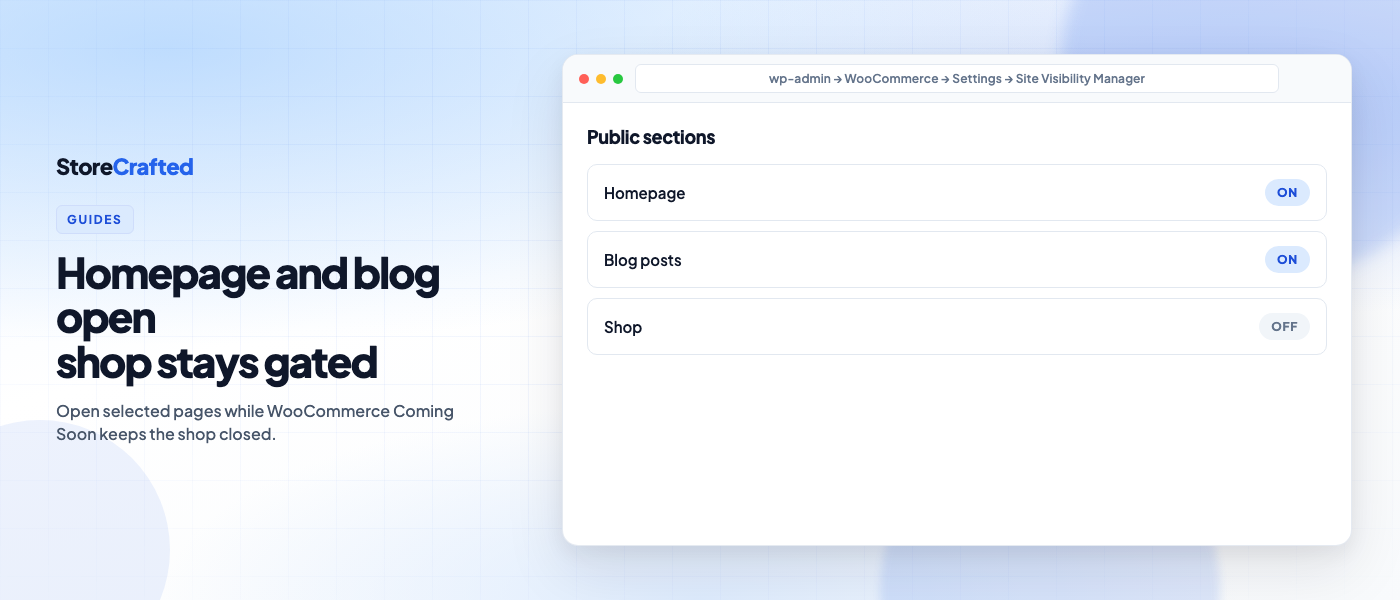
- Go to WooCommerce > Settings > Site Visibility Manager.
- Confirm the status panel shows Coming soon and Entire site.
- Enable the sections you want public — typically Homepage, Blog index, and Blog posts.
- Optionally add exact pages under Public pages (About, Contact, Lookbook). Child pages are not opened automatically; select each page you want public.
- Leave Shop, Products, Cart, Checkout, and My account off unless you intentionally want those open.
- Click Save changes.
Logged-out visitors can now view allowlisted URLs normally. Other front-end URLs keep the WooCommerce Coming Soon template.
3. Design the Coming Soon page
Customise Templates > Page: Coming soon in the Site Editor (block themes). From the Site Visibility Manager status panel you can jump to Site Visibility settings or the Coming Soon template.
Your Coming Soon design stays in WooCommerce / the Site Editor — the same place you already use for WooCommerce Coming Soon. Site Visibility Manager does not ship a competing landing-page builder.
What to verify
Check the storefront while logged out (or in a private window):
- Homepage and a blog post should render normally if those presets are on
- Shop or a product URL should show Coming Soon unless you enabled those presets
- WooCommerce’s private share link should unlock the full store
- A user with
manage_woocommerceshould still see the full site, consistent with WooCommerce core
Full setup notes live in the Site Visibility Manager documentation.
What this plugin does not do
- Template path only. It does not hide products or content from the REST API or Store API. v1 focuses on which requests get the Coming Soon template.
- Not a general maintenance mode. It requires WooCommerce and builds on WooCommerce Site Visibility.
- Not a Coming Soon page builder. It does not replace Woo’s template.
- Feeds, search, attachments, author archives, and date archives are never opened by the allowlist.
- MCP Adapter is optional. The settings UI works without it. Abilities are there if you want automation clients (via MCP Adapter) to read or update the allowlist — still gated by
manage_woocommerce.
Developers can extend evaluation with filters such as scsvm_is_request_public and scsvm_allowlist_settings.
Why we built it
WooCommerce Site Visibility already covers Coming Soon, the Site Editor template, the private share link, and shop-manager bypass. What many launches still lacked was a way to open selected URLs on top of entire-site WooCommerce Coming Soon — without switching to a separate maintenance plugin.
That is the job of Site Visibility Manager for WooCommerce: keep brand pages and the blog readable while commerce stays gated until you are ready.
Start here
- Install Site Visibility Manager for WooCommerce from WordPress.org.
- Set WooCommerce Coming Soon for the entire site.
- Open Homepage, Blog index, and Blog posts under Site Visibility Manager.
- Customise Page: Coming soon, then verify as a logged-out visitor.
When the catalogue and checkout are ready, switch Site Visibility to Live — or open the commerce presets when you want a staged storefront reveal.