You have just updated WooCommerce core, an extension, your theme or PHP. The dashboard loads, the homepage looks fine, and nothing is shouting at you. That is a good start, but it is not proof that customers can still buy. Most update problems do not take the whole site down. They break one step quietly: a payment method disappears, an order email stops sending, a coupon no longer applies.
This post sets out what to check after updating WooCommerce as a practical after-update checklist, grouped by the parts of the store that earn or lose money. Each group says what to look at and how to test WooCommerce after an update. Work through it once by hand, then turn it into a routine you can repeat after every change.
If you want the longer maintenance version, see our WooCommerce store maintenance checklist you can re-run after every update.
It’s good to know what to check after updating WooCommerce and take these notes before
A few habits make testing after an update faster and safer:
- Note what changed. Write down which plugins, theme or PHP version you updated, and from which version to which. If something breaks, this is the first thing you or your developer will need.
- Test on staging first where you can. If your host offers a staging copy, run the update and these checks there before touching the live store.
- Have a recent backup. Confirm it exists and that you know how to restore it.
- Use a private browser window for front-end checks, so you see the store as a logged-out customer does, without cached admin sessions.
Checkout and payments
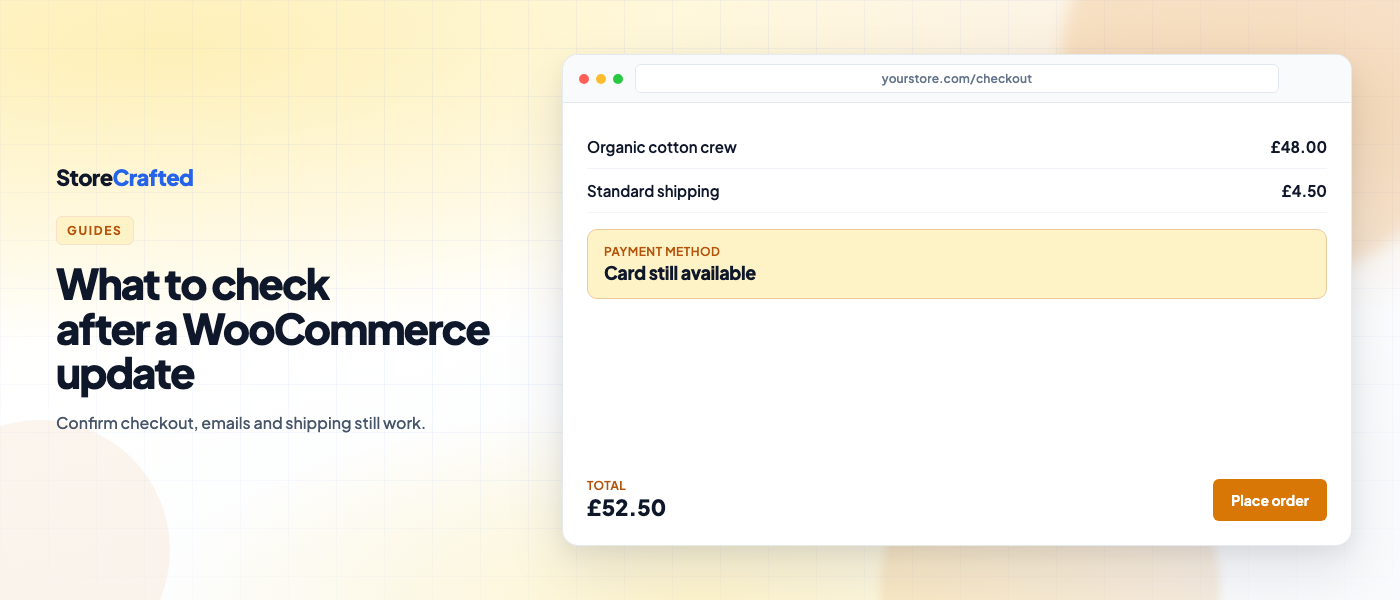
Checkout is where an update failure costs the most, and it is the first place to look if you suspect a WooCommerce update broke checkout. These steps confirm the payment path still works on your store; they are not a PCI assessment.
What to check
- Every payment method you offer still appears at checkout.
- A test order completes and lands on the order-received (thank you) page.
- The order appears in WooCommerce > Orders with the status you expect.
- Checkout fields, including any custom fields, still display and save.
How to check
- Put each payment gateway into its test or sandbox mode where it has one, and place a test order through each. Switch test mode off afterwards and confirm it is off.
- If a gateway has no test mode, place a small real order and refund it.
- Check the order notes on the test order. Gateways usually log a note when a payment is taken or fails.
- If you use the block-based checkout, check that any extension adding fields or payment options still shows there, not only on the classic shortcode checkout.
Order emails
Emails fail silently. The order goes through, the customer hears nothing, and you find out from a support ticket.
What to check
- The customer receives the new order (processing) email.
- The admin new order notification arrives at the right address.
- Emails still carry your branding, and any customisations from your theme or an email plugin still apply.
How to check
- Use the test order from the checkout section and confirm both emails arrive. Check spam folders too.
- In WooCommerce > Settings > Emails, confirm each email you rely on is still enabled and the recipient addresses are correct.
- If you use an SMTP or transactional email plugin, check its send log for the test order.
- Move the test order to Completed and confirm the completed order email sends as well.
Cart and coupons
What to check
- Products add to the cart from both product pages and archive or shop pages.
- Quantities update and the totals recalculate.
- Coupons apply, and their restrictions (minimum spend, product limits, expiry, usage limits) still behave as set.
- Mini-cart or cart fragments in the header update when something is added.
How to check
- Add a simple product and a variable product to the cart in a private window.
- Apply one coupon you know should work and one you know should be rejected. Both outcomes matter.
- If you sell to logged-in customers or wholesale roles with special pricing, log in as a test account in that role and repeat.
Shipping and tax
These checks are operational hygiene — confirm rates still appear and tax lines match your settings. They are not tax or legal advice.
What to check
- Shipping methods appear for the destinations you serve, with the right costs.
- Free shipping thresholds still trigger.
- Tax is calculated on the right base (shipping, billing or store address) and shows as you expect, inclusive or exclusive.
How to check
- Run a cart through checkout with a domestic address and, if you ship abroad, at least one international address from a different shipping zone.
- Compare the shipping and tax lines against what your settings in WooCommerce > Settings > Shipping and Tax say should happen.
- If a live-rate carrier extension provides your shipping costs, confirm it still returns rates rather than falling back to nothing.
Product pages
What to check
- Product pages load without layout breaks, missing images or missing price.
- Variation dropdowns or swatches select correctly and update price and stock.
- Stock status displays correctly, and out-of-stock items cannot be bought unless you allow backorders.
- Anything an extension adds to the product page, such as add-ons, size guides or delivery messages, still shows.
How to check
- Open a simple product, a variable product and any other product type you sell (bundles, subscriptions, downloads).
- Check one on mobile. Theme and template updates often show up there first.
- If your theme overrides WooCommerce templates, look at WooCommerce > Status. The System Status report lists template overrides and flags outdated ones after a WooCommerce update.
Admin, cron and logs
Back-end problems take longer to notice, which is why they are worth checking deliberately.
What to check
- The WooCommerce > Status report shows no new warnings, for example about outdated templates, database updates or PHP version.
- Any prompt to run a WooCommerce database update has been completed.
- Scheduled actions are running, not piling up as pending or failed.
- No new fatal errors appear in the logs.
How to check
- Read the System Status report top to bottom and compare it with what you expect.
- Go to WooCommerce > Status > Scheduled Actions (also available under Tools > Scheduled Actions). At the time of writing, that is where WooCommerce surfaces Action Scheduler jobs. Filter by Failed, then scan Pending for actions whose scheduled time is already in the past. A growing backlog after an update usually points to a broken cron or a failing extension.
- Open WooCommerce > Status > Logs and look for entries dated after the update, especially fatal errors.
- If you rely on renewals, stock syncs or exports that run on a schedule, confirm the next run actually happened.
Turn this into a routine
The checks above take time the first time through. They get faster once they are a routine rather than something you work out from memory when an update looks risky.
- Keep a written list in the same order every time: checkout, emails, cart, shipping and tax, product pages, admin. Tick each item and note the date and what was updated.
- Update in small batches. Updating one or two things at a time makes it far easier to tell what caused a problem.
- Avoid busy periods. Update early in the week and early in the day, not before a sale or a weekend.
- Keep test assets ready. A test customer account, a test coupon and saved addresses for each shipping zone save time on every run.
- Record the result. A short log of each update and each check gives you a baseline, so next time you can see what changed.
Start with checkout and emails after the next update. If those two pass, work through the rest of the list before you treat the store as verified.
Run the checks with a free plugin
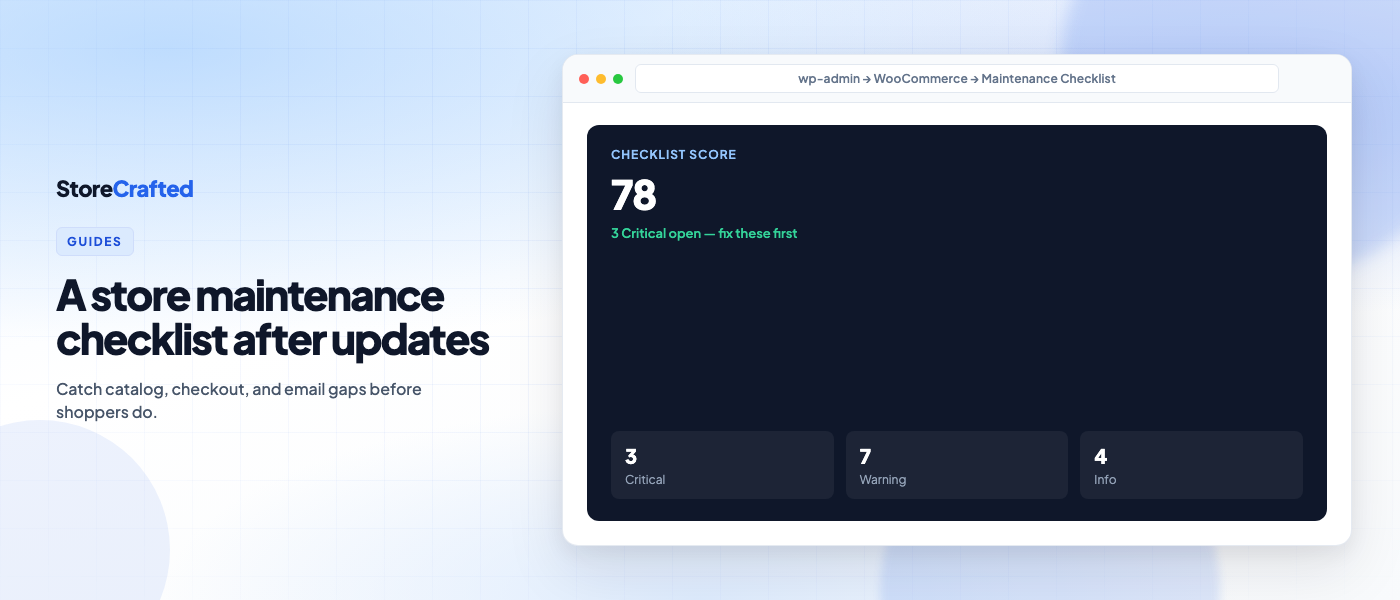
If you would rather not keep the list by hand, the free Store Maintenance Checklist for WooCommerce covers this kind of post-update review inside your dashboard.
- 50 checks across store health.
- Scans run privately on your site. There is no telemetry.
- A free path to fix Critical issues. You do not need to pay to clear a Critical finding.
- It is not a maintenance-mode plugin. It does not close your shop or hide your storefront.
It is free on WordPress.org. Install it, run a scan after your next update, and compare the result with the manual checks above.
Get Store Maintenance Checklist for WooCommerce on WordPress.org