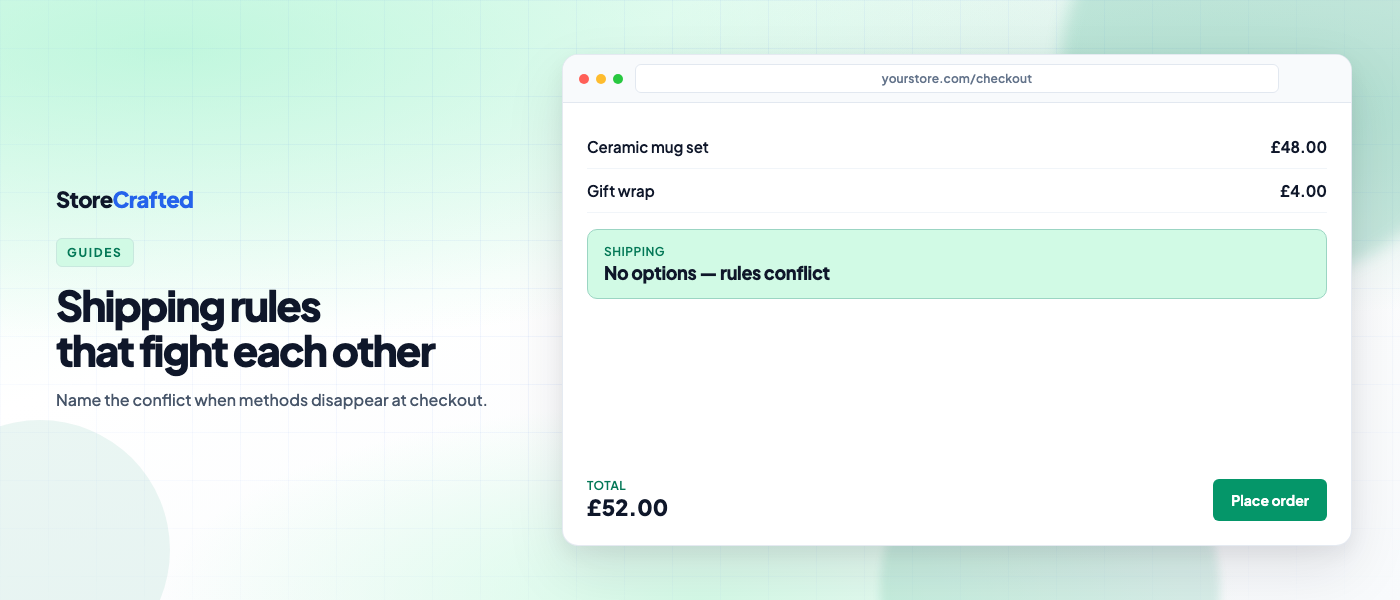
Checkout looks fine until a shopper enters their address. Then the shipping table is empty, free shipping never appears, or paid rates vanish the moment free shipping qualifies. From the admin screen every method still looks “on”. The usual instinct is to delete zones and start again.
That rarely helps. WooCommerce shipping methods not showing is often two rules cancelling each other: a broad zone beating a specific one, a free-shipping threshold fighting a coupon, or a “hide paid rates” setting fighting a plugin that removes free shipping later. Name the conflict pair first. Then change one setting at a time.
This guide is for store owners and agencies who need a calm diagnostic when WooCommerce shipping methods not showing blocks a cart. Prefer staging. Keep WooCommerce’s core shipping troubleshooting open while you work. By the end you should know which zone matched, which conflict is active, and how to retest without leaving debug mode on for customers.
How WooCommerce builds the rate list
WooCommerce does not merge every zone into one list. For each address it:
- Picks the first shipping zone whose regions match that address (shipping zones docs).
- Collects enabled methods in that zone that pass their own conditions (for example Free shipping “requires”).
- Optionally hides paid rates when free shipping is available — WooCommerce → Settings → Shipping → Shipping settings → Hide shipping rates when free shipping is available (WooCommerce 9.9 and later, at the time of writing; hide-when-free guide). Local pickup stays available when that setting works as intended.
- Lets shipping plugins filter the list again.
When you see WooCommerce shipping methods not showing, one of those steps usually discarded the rate you expected. Rewriting every zone before you know which step failed is how good setups get worse. Treat WooCommerce shipping methods not showing as a pipeline problem, not a blank canvas.
Before you start: reproduce one broken cart
Pick one cart that fails. Prefer a staging copy. You want WooCommerce shipping methods not showing to be repeatable so each fix can be checked against the same address.
- Use one simple physical product (not Virtual).
- Note country, state/province, and postcode exactly.
- Note cart total, any coupon, and whether you are a guest or logged in.
- Record the symptom: empty list / wrong rates / free missing / paid missing once free qualifies.
- Check whether Cart and Checkout use blocks or classic shortcodes — debug notices behave differently (see below).
If you cannot reproduce WooCommerce shipping methods not showing on demand, you are guessing. Get one broken cart first.
Turn shipping debug mode on (then off)
Go to WooCommerce > Settings > Shipping > Shipping settings, enable Enable debug mode, and save.
Debug mode does two useful things for core methods (Flat rate, Free shipping, Local pickup):
- It bypasses the shipping rate cache, so setting changes show up without a stale package.
- On the classic Cart page, it can show a notice naming the matched shipping zone.
Do not rely on that notice on the Cart or Checkout blocks, during AJAX updates, or on classic Checkout — WooCommerce’s troubleshooting guide is explicit about those limits. If your live store is block-only, put a temporary classic Cart shortcode on a private test page while you diagnose WooCommerce shipping methods not showing.
Debug mode is customer-visible. Turn it off as soon as you know the matched zone. Leaving it on will not fix WooCommerce shipping methods not showing — it only helps you see which zone won.
Conflict 1: WooCommerce shipping zones overlapping (wrong order)
Symptom: Methods exist in a zone you care about, but customers never see them. Another zone’s rates appear instead — or nothing appears if the matched zone is empty. From the merchant side this looks like WooCommerce shipping methods not showing for the rates you configured.
What is fighting: A broader zone listed above a narrower one. WooCommerce stops at the first match. WooCommerce shipping zones overlapping is less about duplicate geography on the map and more about list order: postcode or city zones must sit above state or country zones (sorting shipping zones).
From WooCommerce 11.1 (at the time of writing), the zones list can warn when an earlier continent/country/state zone shadows a later one. Treat a clean list carefully: WooCommerce notes that postcode-based overlaps may not show that warning. If you still see WooCommerce shipping methods not showing for a specific postcode, check order yourself.
Fix:
- Drag the most specific zone above the broader one.
- Save changes.
- Retest the same address with debug mode and confirm the matched zone name on classic Cart.
Local pickup that “vanishes” for nearby postcodes is often the same pattern — the pickup zone needs to sit above the overlapping delivery zone (Local Pickup docs). A full pickup-plus-delivery setup guide is a separate job; for this diagnostic, treat missing pickup as a zone-order clue in a WooCommerce shipping methods not showing report.
Conflict 2: WooCommerce free shipping not showing (conditions vs cart)
Symptom: Flat rate (or another paid method) appears, but free shipping does not — even when the basket “feels” high enough. Paid methods work; WooCommerce free shipping not showing is the narrow complaint. Support tickets may still label the whole mess as WooCommerce shipping methods not showing because free was the expected option.
What is fighting: The Free shipping method’s Free shipping requires setting versus the real cart (and sometimes coupons).
Open the Free shipping method in the matched zone (Free Shipping docs) and check:
| Requires option | What must be true |
|---|---|
| No requirement | Free shipping for everyone in that zone |
| A valid free shipping coupon | Coupon with free shipping — minimum amount alone will not unlock it |
| A minimum order amount | Cart meets the amount (watch the “before coupon discount” checkbox) |
| Minimum OR coupon | Either condition |
| Minimum AND coupon | Both conditions |
If WooCommerce free shipping not showing after a discount, check Apply minimum order rule before coupon discount. Unchecked, WooCommerce evaluates the minimum on the amount after the coupon. Checked, it uses the amount before the discount.
After you save a minimum amount, re-open the method and confirm the stored figure matches what you intended — then retest. A wrong threshold is an easy way to think free shipping is broken when the cart simply never qualifies.
Fix: Align the requires option with the promo you actually run. Retest just below and just above the threshold with the same coupon state.
Seeing free shipping and flat rate together is not a conflict by default — WooCommerce shows every matching method unless you enable hide-when-free (next section). Side-by-side rates are not the same problem as WooCommerce shipping methods not showing.
Conflict 3: Hide paid rates vs rules that remove free shipping
Symptom: Cart looks like it should qualify for free shipping, then checkout shows an empty list — classic WooCommerce shipping methods not showing, including cases where customers see WooCommerce no shipping options available (or similar wording).
What is fighting: Hide shipping rates when free shipping is available (Shipping settings, WooCommerce 9.9+) versus a conditional shipping plugin (or custom filter) that removes free shipping after paid rates have already been stripped. In that order of operations, shoppers can end up with neither free nor paid methods. WooCommerce’s troubleshooting notes describe the intended hide-when-free behaviour (paid delivery rates disappear; Local pickup can remain) and separately advise testing plugins that adjust shipping dynamically — for example Conditional Shipping and Payments — by deactivating them and rechecking. If the final list is empty instead of “free only”, treat hide-when-free and your conditional rules as a conflict pair to test.
Fix path for store owners:
- Note whether a conditional shipping / payments plugin is active.
- Temporarily disable Hide shipping rates when free shipping is available and retest the same cart.
- If paid rates return, review the plugin’s rules that exclude free shipping (weight, category, shipping class, and so on).
- Only re-enable hide-when-free when free shipping still remains in the final list customers see.
Change one variable at a time. Do not leave debug mode on while you sort plugin rules — that will not resolve WooCommerce shipping methods not showing by itself.
Conflict 4: WooCommerce no shipping options available (empty matched zone)
Symptom: The customer message is close to “No shipping options are available for this address” (WooCommerce’s documented wording; themes can vary slightly). Debug mode shows a zone match, but the list is empty. That is WooCommerce no shipping options available — and it is still a form of WooCommerce shipping methods not showing.
What is fighting: Nothing exotic — the address matched a zone with no enabled methods, or every method failed its own conditions. WooCommerce’s no shipping options checklist starts here: zone match, enabled methods, postcode rules, product not virtual, then debug mode.
This is different from WooCommerce shipping zones overlapping. Overlap sends the shopper to the wrong zone. An empty matched zone is the right zone with nothing to offer — including intentional “exclude this region” zones that have zero methods. Both can present as WooCommerce shipping methods not showing; the matched zone name tells you which.
Fix: Enable or add the methods you intend in that zone, or reorder zones if you meant a different zone to win. Retest the same address.
If WooCommerce shipping methods not showing applies only to live carrier rates (and core Flat rate still works), you may be looking at an API, weight, or packing problem — not a zone-order fight. Isolate with one core Flat rate method before you rewrite geography. Core Flat rate, Free shipping, and Local pickup do not calculate from product weight or dimensions; carrier extensions often do (troubleshooting notes).
Symptom → conflict cheat sheet
| What you see | Likely conflict | First check |
|---|---|---|
| Wrong rates for a postcode / city | Zones overlapping / wrong order | Zone list order + debug matched zone |
| WooCommerce free shipping not showing | Requires vs cart / coupon | Free shipping requires + before-discount checkbox |
| Paid rates vanish; free never appears; empty list | Hide-when-free vs plugin removing free | Toggle hide setting; review conditional rules |
| WooCommerce no shipping options available | Empty or disabled methods in matched zone | Methods enabled in the zone debug named |
| Rates change only after waiting / refresh | Rate cache (not a rule fight) | Debug mode briefly, then off |
Use the table when WooCommerce shipping methods not showing lands in a support ticket: paste the symptom row and the matched zone name so anyone picking up the thread can jump straight to the right conflict.
What not to do
- Leave shipping debug mode enabled on a live storefront.
- Delete every zone before you know which zone matched — that turns one WooCommerce shipping methods not showing case into a full rebuild.
- Treat a live-rate carrier failure as proof that zones are overlapping.
- Switch Cart/Checkout from blocks to classic (or the reverse) as step one — use a temporary classic Cart test page for the debug notice instead.
- Assume a clean zones list (no 11.1 warning) means no postcode overlap.
- Cache cart or checkout pages to “fix” WooCommerce shipping methods not showing — those pages must stay dynamic (caching guidance).
Peak-sale hygiene that only confirms rates still appear lives in our Black Friday readiness checklist and post-update checks. This post owns the conflict diagnostic when those checks fail and WooCommerce shipping methods not showing is still the problem.
Retest ritual
- Same product, address, cart total, and coupon state as the broken case.
- Confirm the expected methods (and only those methods) appear — WooCommerce shipping methods not showing should be gone for that cart.
- Disable debug mode and save.
- Spot-check one address in a neighbouring zone so you did not break a working region while fixing another.
If empty zones or “no methods configured” keep recurring across updates, the free Store Maintenance Checklist is a useful hygiene scan. It will not replace naming the conflict above when a specific cart still has WooCommerce shipping methods not showing.
Start with the matched zone
When WooCommerce shipping methods not showing, do not start with a full shipping redesign. Reproduce one cart, read the matched zone under debug mode, then ask which pair is fighting: WooCommerce shipping zones overlapping, free shipping conditions (WooCommerce free shipping not showing), hide-when-free versus a filter that removes free shipping, or an empty matched zone (WooCommerce no shipping options available).
Fix that pair. Retest. Turn debug off. That is usually enough to clear WooCommerce shipping methods not showing without throwing away a setup that was mostly right.