Black Friday and Cyber Monday break stores in quiet ways. The homepage still loads. Ads still click. The sale banners look fine. Meanwhile a gateway sits in test mode, a coupon excludes the sale SKUs, cart pages get cached, or order emails stop sending. Shoppers never complain in a useful way — they just leave.
Here’s a WooCommerce Black Friday checklist built for ops readiness, not marketing. Use it to prepare WooCommerce for Black Friday and BFCM 2026 (Black Friday 27 November, Cyber Monday 30 November) by proving the money path still works under peak pressure: checkout, payments, email, stock, cache, backups, and rollback.
For year-round habits rather than a seasonal peak plan, see our WooCommerce store maintenance checklist and what to check after updating WooCommerce. For campaign ideas and customer engagement, WooCommerce’s own Black Friday checklist covers that half of the job.
What this WooCommerce Black Friday checklist covers
It is a phased ops list you can tick with evidence — an order in WooCommerce > Orders, an email in the inbox, a shipping rate at checkout, a restorable backup.
It is not Site Health alone (useful, but it will not tell you a coupon failed or a webhook left an order Pending), a load-test consultancy pitch, or advice on ad spend and landing-page copy.
WordPress Site Health and WooCommerce > Status are necessary background. They are not proof that a customer can buy the sale product on a phone at 11pm.
When to start preparing
Treat BFCM as one peak window, not two separate weekends. Work backwards from 27–30 November 2026:
| Phase | Rough timing | Focus |
|---|---|---|
| Foundation | 4–6 weeks out | Staging tests, hosting headroom, cache rules, email delivery, payment sandbox runs |
| Rehearsal | ~1 week out | Full purchase journeys on mobile and desktop; coupon and shipping rules; Action Scheduler health |
| Freeze | 48 hours out | Update freeze, final live checks, backup restore confidence, on-call plan |
| Peak | BFCM weekend | Watch failed payments, Pending orders, email gaps, server errors |
| After | First week of December | End scheduled sales, disable expired coupons, clear backlog, note what broke |
If you are already inside the one-week window, skip polish and run the money-path sections first: checkout, payments, email, then coupons.
WooCommerce Black Friday checkout and payments
Checkout is where peak traffic turns into revenue — or into abandoned carts. Prove the full purchase journey end to end. A page that “looks fine” is not enough.
What to check
- Guest checkout and logged-in checkout both complete.
- Every active payment method appears and can take a successful payment.
- A declined or failed card shows a clear result, and a retry can succeed.
- Express / wallet buttons (Apple Pay, Google Pay, PayPal, and similar) work on the devices you care about.
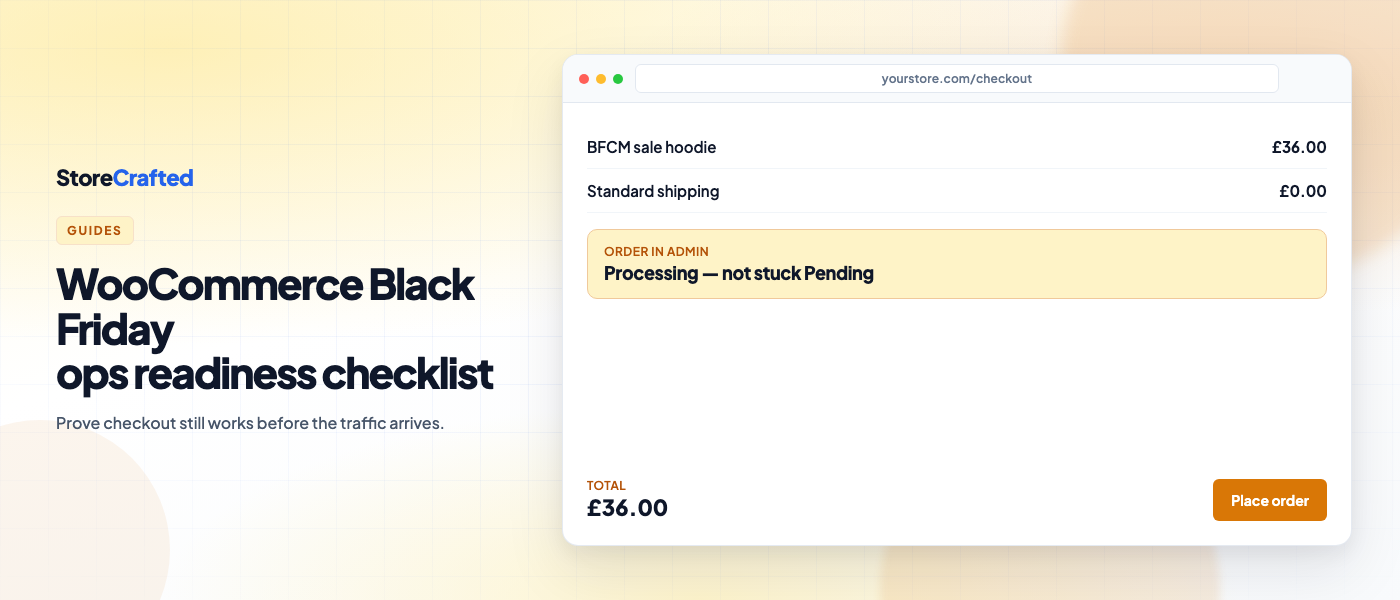
- The order reaches the status you expect in WooCommerce > Orders — not only the thank-you page.
- Order notes show gateway confirmation or a useful failure message.
- If you have a secondary gateway, it still appears when you need it.
These steps confirm your payment path still works on your store. They are not a PCI assessment or a security certification.
How to check
- On staging, put each gateway into test or sandbox mode and place an order through each method you offer.
- Repeat on a phone (real Safari / Chrome), not only a resized desktop window. Express buttons often fail only on mobile.
- Confirm the order in admin: status, payment method, stock reduction, and order notes.
- Prefer staging before production. Where you must test live, use a low-value product or a 100% coupon limited to your own email, then refund and clean up.
- If you use block-based cart and checkout, verify extensions and payment options on those blocks — not only on a classic shortcode checkout you no longer show shoppers.
A green uptime monitor on `/checkout/` is not enough. The page can load while the payment step fails, or while a webhook never updates the order.
Coupons and sale prices (verify, don’t design)
You do not need another brainstorm of offer ideas here. You need proof the discounts you already planned behave correctly.
What to check
- Each Black Friday / BFCM coupon applies to the products and categories you intended — and rejects the ones it should.
- Minimum spend, usage limits, expiry dates, and free-shipping coupons still match the campaign brief.
- Scheduled sale prices show the final amount you expect (including variable products).
- Products that were already on sale have a clear rule: campaign replaces them, stacks, or excludes them.
- You know how prices and coupons roll back when the sale ends.
How to check
- In a private window, add a sale product and a non-sale product. Apply a coupon that should work and one that should fail.
- Walk checkout far enough to see shipping and tax lines with the discount applied.
- Note the coupon IDs and sale schedule dates somewhere your team can find at 10pm on Friday.
- Practise disabling or expiring the coupons on staging after the window, so rollback is not a first-time job under pressure.
Catalogue and stock
Peak demand exposes catalogue gaps that a quiet Tuesday hides.
What to check
- Featured sale products have valid prices, images, and purchasable stock (including variations).
- Low-stock thresholds and backorder settings match what support will promise customers.
- Bundles, kits, or linked products (if you use them) decrement stock correctly on a test order.
- Out-of-stock items cannot be bought unless you intentionally allow backorders.
For a deeper catalogue hygiene pass you can re-run any month, use the store maintenance checklist. Before BFCM, prioritise the SKUs that will take the traffic.
Shipping and tax
Operational checks only — confirm rates and tax lines still appear under promo rules. This is not tax or legal advice.
What to check
- Shipping methods appear for the zones you serve, including free-shipping thresholds tied to the sale.
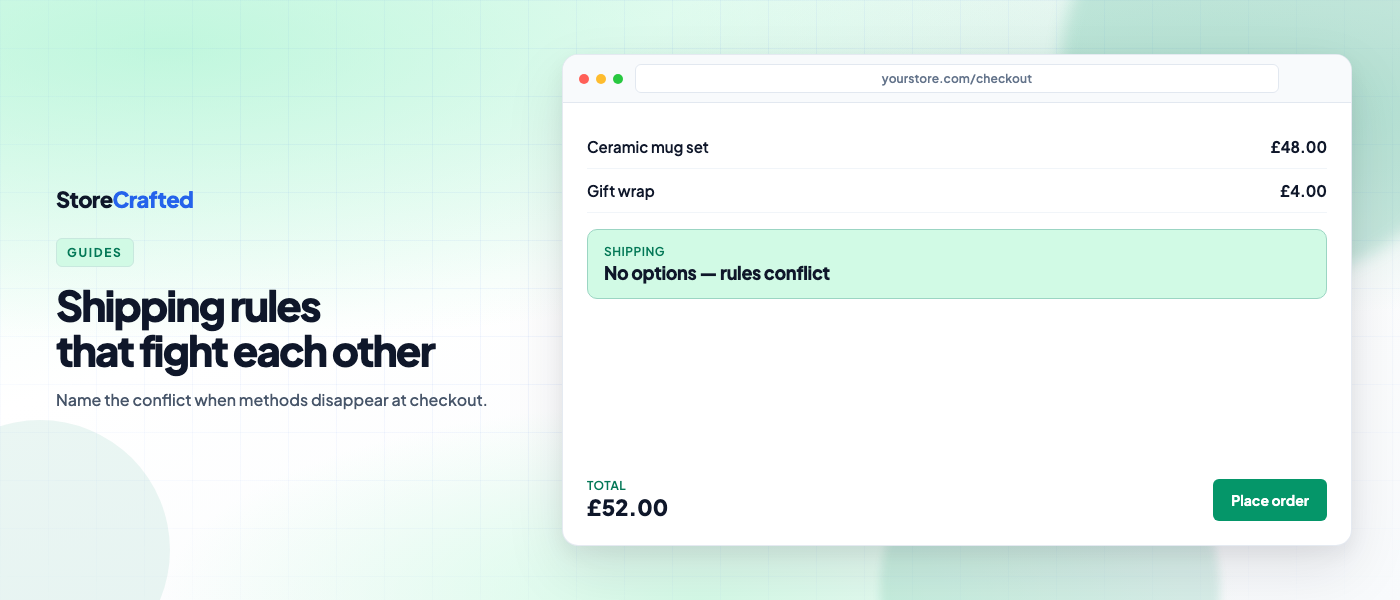
- Live-rate carriers still return rates rather than an empty list.
- Tax still calculates on discounted carts the way your WooCommerce > Settings > Tax setup intends (inclusive or exclusive).
How to check
- Run checkout with a domestic address and, if you ship abroad, one international address from another zone.
- Apply the main BFCM coupon and confirm shipping and tax lines still make sense.
- If free shipping starts at a cart total, test just below and just above that threshold with the discount applied.
Email and fulfilment signals
Orders that place without email create “where is my order?” tickets at the worst possible time.
What to check
- Customer processing / new-order emails arrive.
- Admin new-order notifications reach the right inbox.
- Failed-payment and cancelled-order emails behave as you expect, if you rely on them.
- The store From address looks trustworthy (not a bare server default that lands in spam).
How to check
- Use the test orders from checkout. Check inbox and spam for customer and admin messages.
- In WooCommerce > Settings > Emails, confirm the emails you need are enabled and recipients are correct.
- If you use SMTP or a transactional email service, check its send log for those test orders.
- Move a test order to Completed and confirm that email sends too.
Performance and cache without breaking the cart
Catalogue pages can (and should) be cached aggressively. Cart, checkout, and My Account must stay dynamic.
WooCommerce’s caching guidance is clear: exclude Cart, Checkout, and My Account. Those pages show customer- and cart-specific data. Misconfigured cache is a classic high-traffic failure — one shopper sees another’s basket, or checkout serves a stale total.
What to check
- Page cache / CDN rules exclude cart, checkout, and My Account (and related WooCommerce AJAX where your host documents it).
- Adding to cart in one browser does not appear in another private browser.
- WooCommerce > Status > Scheduled Actions is not drowning in Failed or overdue Pending jobs.
- Hosting has headroom for a spike. Ask your host what happens at a few times normal peak, even if you cannot run a formal load test.
How to check
- Confirm exclusions in your caching plugin or host panel against the three WooCommerce pages above.
- Add a product in Chrome; open the same store in a private Firefox window. You should not see that cart.
- Open WooCommerce > Status > Scheduled Actions (at the time of writing, that is where Action Scheduler surfaces). Filter by Failed, then scan Pending for jobs whose scheduled time is already past.
- Freeze non-essential performance experiments in the final week. BFCM is a bad moment to try a new cache plugin.
Backups, update freeze, and rollback
High-traffic weekends punish late surprises.
What to check
- A recent backup exists, and someone on the team has restored from that kind of backup before (or has practised on staging).
- An update freeze is agreed: no casual plugin, theme, or PHP upgrades during the peak window unless you are fixing a live outage.
- You know how to turn off the sale (coupons, scheduled prices, banners) if something is wrong.
- Someone is reachable when failed payments or 5xx errors spike.
Write the freeze dates and the on-call contact somewhere shared. “We’ll figure it out on Friday” is not a plan.
During the sale: what to watch
Keep the monitoring list short enough that someone will actually look at it:
- Failed or Pending payments climbing in WooCommerce > Orders
- Customer or admin order emails not arriving
- Checkout or payment gateway errors in logs
- Server 5xx / host alerts
- Action Scheduler Failed count rising
- Stock anomalies on the top sale SKUs
Agree who gets the phone alert. Email-only alerts at 2am are read at 9am.
After BFCM
- End or expire sale prices and coupons on purpose — do not leave yesterday’s 40% live.
- Clear any order or email backlog from the weekend.
- Note what failed (gateway, coupon, cache, stock) so next year’s WooCommerce BFCM checklist starts from evidence, not memory.
- Run a normal post-change review if you shipped emergency fixes — the after-update checklist is built for that.
Optional: run an ops scan before the freeze
If you would rather not keep every catalogue, payment, email, and environment check only in your head, StoreCrafted’s free Store Maintenance Checklist for WooCommerce runs a prioritised scan on your site. We build it. It is not a maintenance-mode plugin and it does not close the shop.
Critical findings always include a free WooCommerce or WordPress fix path — you never need to buy anything to clear a Critical. Use the scan as a rehearsal aid a week out, and again after the update freeze starts. It does not replace placing real test orders through checkout.
Start here this week
- Book staging time for a full guest + mobile checkout through every gateway you offer.
- Confirm cart, checkout, and My Account are excluded from cache.
- Send yourself the customer and admin emails from a test order.
- Write the update-freeze dates and on-call contact where the whole team can see them.
- Verify the main BFCM coupons and sale prices on the SKUs that will carry the traffic.
Marketing can fill the funnel. This checklist is about whether the store can still take the order when it arrives.