The order shows in WooCommerce > Orders. Payment looks fine. The customer asks where their confirmation went. You check your own inbox — nothing there either. This could point towards WooCommerce emails not sending or sending but not being received.
If you are chasing WooCommerce emails not sending, the useful first move is not “install another plugin”. Find where the path broke: whether WooCommerce should have fired an email at all, whether it handed the message to your mail system, or whether the message left the site and never reached an inbox.
Here’s a merchant diagnostic that walks that path in order. By the end you should know which branch you are on — never triggered, failed locally, or sent but not received — and what to fix next. Keep WooCommerce’s email troubleshooting docs open for the official long form.
What “WooCommerce emails not sending” usually means
Neither WordPress nor WooCommerce is an email server. WooCommerce builds the message and calls WordPress’s wp_mail(). Your host (or an SMTP / transactional provider) is what actually tries to deliver it. Woo’s SMTP providers overview explains that journey clearly.
So the complaint usually means one of three things:
- Never triggered — the order status or settings meant WooCommerce never attempted a send.
- Triggered but failed locally — WooCommerce tried; the mailer returned an error before the message left cleanly.
- Sent from Woo’s point of view, not received — the site handed the mail off successfully; spam filters, authentication, or the recipient’s provider blocked or buried it.
Your job is to prove which class you are in with evidence, not guesswork.
Before you start
- Use a staging copy if you can. If you must test on production, use a low-value product or a 100% coupon limited to your own email, then refund and clean up.
- Know your approximate WooCommerce version. From WooCommerce 10.9, a core transactional email log lives under WooCommerce > Status > Logs (source
transactional-emails). That is the fastest evidence path for order mail. Older stores need a short fallback later in this guide. - Have admin access to WooCommerce > Settings > Emails, WooCommerce > Orders, and WooCommerce > Status > Logs.
Step 1: Should an email have fired?
If WooCommerce order emails not sending is the symptom, start with order status — not SMTP.
Open WooCommerce > Orders and find a recent order that should have produced mail. Match the status to the notification you expected (email settings reference):
| What you see | What it usually means |
|---|---|
| Status is Pending payment | No order confirmation email is expected yet. Per Woo’s troubleshooting guide, pending unpaid orders do not trigger those notifications. Payment was not completed, the shopper abandoned an off-site gateway, the card was declined, or the gateway never updated the order. |
| Status is On hold | Common for offline methods such as Direct bank transfer (BACS). Stock may already be reduced, but payment still needs confirming. The customer Order on-hold email (if enabled) is the one that should have fired — not the Processing order email. Admin New order may still fire when the order is received. |
| Status is Processing or Completed (as your workflow expects) | The matching customer email should have been attempted if that notification is enabled — Processing after payment, Completed when you mark the order fulfilled. |
| Customer paid (gateway / bank shows the charge) but the order is still Pending payment | This is primarily a payment gateway / callback problem, not an email template problem. Fix status updates first; emails follow the status change. |
Common gotchas:
- Manual or offline methods (bank transfer, cheque) often land on On hold until you confirm payment. When you move the order to Processing, that is when the Processing order email should send.
- A fatal error or plugin conflict during checkout can prevent the status change that would have triggered mail. Check WooCommerce > Status > Logs for fatals around the order time.
If the order never reached a status that should email, stop here and fix payments or status transitions. Do not spend the afternoon on SPF records yet.
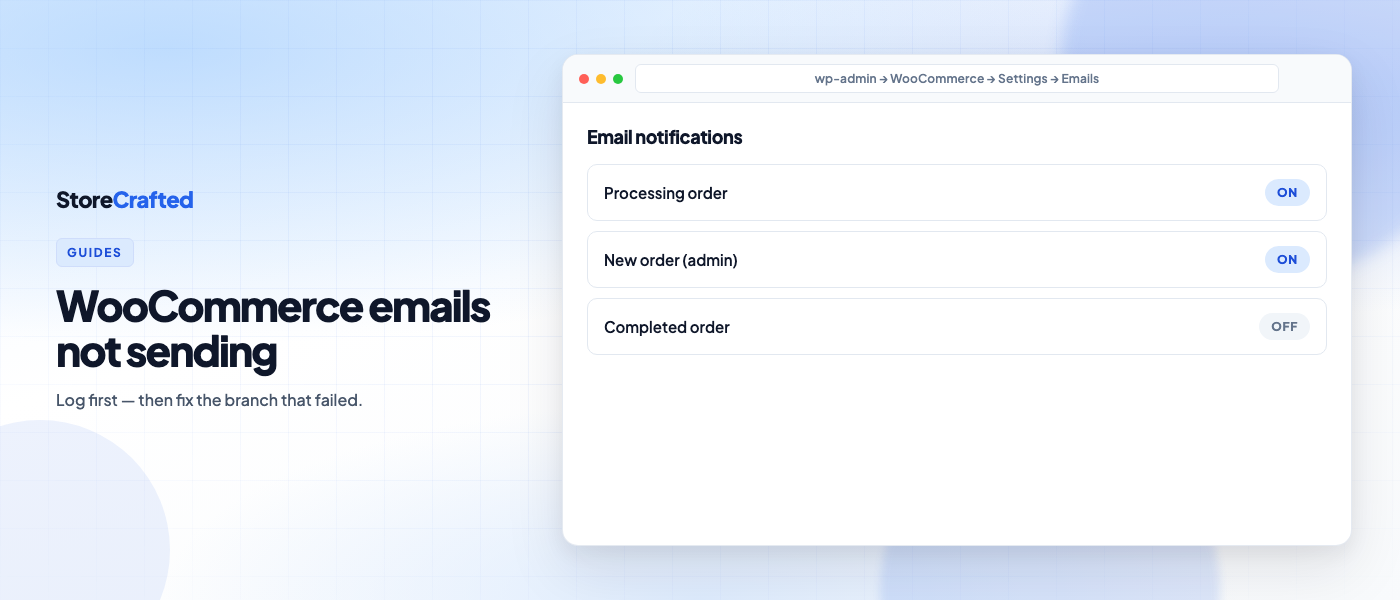
Step 2: Check WooCommerce > Settings > Emails
Navigate to WooCommerce > Settings > Emails.
For each notification you care about (New order, Order on-hold, Processing order, Completed order, and any others you rely on):
- Open the template (Manage).
- Confirm Enable this email notification is ticked.
- For admin emails, confirm the Recipient(s) address is still correct — old staff addresses are a classic silent miss.
- Beneath the notifications list, set the shared From name and From address. Use an address on your store’s domain (for example
orders@yourstore.com), not a personal@gmail.comor@yahoo.comaddress. Public-domain From addresses are a common reason mail is filtered or rejected; see Woo’s email authentication guidance.
Optional: use Email preview / Send a test email on the Emails screen (where available) to check template rendering and basic delivery without placing a full order. Still retest with a real status change when you are diagnosing production failures — preview is not a substitute for the log on a live order path.
Save changes if you edited anything, then place or advance a fresh test order before you dig deeper.
Step 3: Use the WooCommerce transactional email log
This is the centre of the diagnostic on current installs for WooCommerce emails not sending.
- Create a test order — or move an existing test order through the status that should send mail.
- Go to WooCommerce > Status > Logs.
- Open or filter the log source named
transactional-emails. - Find the entry for the email type and related order.
At the time of writing, WooCommerce records these outcomes:
| Log outcome | Meaning | Next move |
|---|---|---|
| Sent | WooCommerce handed the email to the site’s mail system successfully | Treat this as a deliverability problem (spam, auth, provider). Jump to the “not received” branch below. |
| Failed | WooCommerce tried; the mail process returned an error | Read the failure reason in the log. Fix host mail / SMTP / authentication. |
| Disabled | That email type is turned off in Settings → Emails | Enable it and retest. |
| Skipped | A required condition was missing (often no recipient) | Fix the missing condition, then retest. |
For order-related mail, Sent and Failed attempts are also added as private order notes on the order. Disabled and skipped outcomes live in the log only.
If you expect entries and see none, check WooCommerce > Status > Logs > Settings. Logging must be enabled, and the log level threshold must not hide INFO or NOTICE entries — successful sends log at INFO; disabled/skipped at NOTICE; failures at WARNING.
Woo’s email troubleshooting documentation and the transactional email logging deep dive are the source of truth for wording and privacy behaviour (recipient addresses are not stored as raw emails in the log).
Scope note: the transactional-emails source covers WooCommerce transactional mail. WordPress password resets and some other admin mail may not appear there. For those, use your SMTP provider’s log or a general mail logging plugin.
Older stores without core logging
If your WooCommerce version predates core transactional email logging, use the same decision tree with a different evidence source for WooCommerce emails not sending:
- Your SMTP / transactional provider’s send log, or
- A WordPress mail logging plugin (many older guides start here for that reason).
Then return to the three branches below. Prefer updating WooCommerce on staging first when you can — the core log removes a whole class of “did it even try?” ambiguity.
Branch A: Disabled or Skipped
These outcomes are configuration, not deliverability:
- Disabled > enable the notification in Settings > Emails, save, retest.
- Skipped > fix the precondition (often add a recipient for admin mail), retest.
Do not jump to SMTP until a retest stops logging Disabled or Skipped.
Branch B: Failed in the log
A Failed entry means the problem is still on your site or mailer connection — WooCommerce attempted the send and got an error back.
Work through, in order:
- Read the failure reason in the log or order note (auth failures, connection refused, and similar messages are common).
- Confirm From address is on your domain and matches what your SMTP provider expects.
- If you already use an SMTP or transactional plugin, open its connection settings and send a test from that plugin. Fix credentials, API keys, and verified sender domains before changing Woo templates again.
- If you rely on the host’s PHP mail, ask the host whether outbound mail is allowed and whether they recommend an authenticated relay. Shared hosting without a proper relay is a frequent Failed path.
- Conflict check on staging: deactivate non-essential plugins, switch to a default theme, place a test order. If mail starts working, re-enable in batches to find the conflict.
- Background processing: if something on the site defers transactional emails or queues them via Action Scheduler, check WooCommerce > Status > Scheduled Actions for failed or pending email-related actions. Most stores send during the request; only chase this if you know deferral or a custom queue is in play.
When the log flips from Failed to Sent on a retest, move to Branch C only if the inbox is still empty.
Branch C: Sent, but the email was not received
If the log says Sent and the customer still did not get the message, WooCommerce has done its part of the handoff. A WooCommerce email not received after a Sent log is a deliverability problem:
- Check spam / junk for both the customer address and your admin recipients.
- Confirm the From address uses your domain (again). Mismatched public-domain senders are a classic filter trigger.
- Check email authentication for the sending domain: SPF, DKIM, and DMARC as your host or SMTP provider documents. Woo’s authentication guide is the right starting point.
- Send a controlled test and score it with a deliverability checker (for example mail-tester.com) so you can see authentication failures plainly.
- If the host’s mail path remains unreliable, move transactional mail to an authenticated SMTP or transactional email provider. Woo’s SMTP providers documentation lists options and trade-offs — pick a provider you can authenticate and monitor, not the first brand in a sponsored listicle. No plugin “guarantees” inbox placement; authentication and sender reputation still matter.
Marketing newsletters and transactional order mail share authentication basics, but they are not the same product problem. Fix order confirmations with transactional sending and verified domains; do not assume a newsletter tool alone explains a missing processing email.
Quick retest ritual
When you think you have fixed the branch:
- Place a guest test order (or advance your test order through On hold / Processing / Completed as needed for the email you care about).
- Confirm the order status you expect in WooCommerce > Orders.
- Confirm a matching Sent (or the outcome you intended) in the transactional-emails log and on the order notes.
- Confirm the customer message and the admin New order message both arrive — including spam folders — when those templates should have fired for that status.
- If Completed-order mail matters for your fulfilment workflow, move the test order to Completed and repeat the log + inbox check.
- If you’re still experiencing WooCommerce emails not sending you can use a free plugin like Email Log to log all outgoing emails.
That short ritual beats a week of speculative plugin installs.
Where this fits with store ops
Email is one quiet failure mode among several. After updates, run the same habit as the rest of checkout: prove the money path still works. Our what to check after updating WooCommerce guide includes an order-emails section; the Black Friday ops checklist treats missing confirmations as a peak-sale risk.
If you want a broader re-runnable scan across catalogue, payments, shipping, email settings, and environment — not a substitute for this diagnostic — the free Store Maintenance Checklist for WooCommerce on WordPress.org can flag weak From addresses, disabled order emails, and missing recipients as part of a wider ops pass. It does not prove inbox delivery. Use it after you know which email failure class you are fixing.
Start here this week
- Pick one recent order that should have emailed. Note its status and which template that status should fire.
- Confirm that template is enabled under WooCommerce > Settings > Emails, with a domain From address.
- Place a test order and open WooCommerce > Status > Logs >
transactional-emails. - Fix the branch the log shows — Disabled / Skipped, Failed, or Sent-but-not-received — before you change anything else.
Once you can read that log confidently, “WooCommerce emails not sending” stops being a mystery and becomes a short, evidence-led checklist.